The Forgetten Edition of Windows XP: Windows FLP
Posted 29 June 2026Can you believe Windows XP is, like, 25 years old? It's kinda wild, honestly. I mean, this relic of my childhood is almost as old as I am! (It's older than my sister!) Wild. But there were plenty of versions of it that you might not be familiar with. I'm not going to make individual posts for each and every one, but let's just mention a few here.
For instance, did you know that not only was there a 64-bit version of Windows XP, but there were actually TWO! Yep, there were versions for both AMD64 and Itanium! It was also the only workstation version of Windows on Itanium! (Neither Windows 2000, nor Windows Vista onwards were available on Itanium, even though Windows Server 2008 and 2008 R2 both were.) There were, of course, the tablet PC and media center editions. There were also a number of versions for low-end PCs. Windows XP Starter Edition was a version made for low-end PCs sold in developing nations. You probably knew about Windows XP Embedded, but there were also two spin-offs. One, Windows Embedded POSReady was a version for point-of-sale terminals. The other, the subject of today's post, is Windows Fundamentals for Legacy PCs.
The year is 2006. You own a business with a sizeable number of PCs designed for things like Windows 98 or Windows NT 4. Unfortunately for you, support for those operating systems is soon to end. So, what do you do with all those computers? Well, if you happened to be a Microsoft Software Assurance customer, they had the answer for you: just install Windows FLP on them!
Yeah, you may not know it from how they act now, but there was once a time where Microsoft actually cared about not unnecessarily deprecating perfectly good computers (or, at least, they pretended to care)! Yes, far from today's Microsoft telling businesses to replace all their computers or pay ungodly amounts of money to put it off for a few years, back then, Microsoft, just for being a Software Assurance customer (which got you other benefits, including free upgrades to newer versions of Microsoft software, as well as enterprise editions of Windows among other things), gave you an operating system to keep your old PCs going. (Not only keep them going, but, perhaps to Microsoft's surprise, keep them going for another 8 years, given XP's 2014 EOL.)
Windows FLP is, as mentioned, a derivative of Windows XP Embedded. Ostensibly, it was meant for lower-end PC. Legacy PCs, specifically, as the name implies. Interestingly, though, the system requirements, or the ones I can find, anyways, are near identical to those for Windows XP. Like, compare the two:
| Component | Windows XP | Windows FLP |
|---|---|---|
| CPU | Pentium or newer, 233 MHz | Pentium or newer, 233 MHz |
| RAM | 64 MB minimum | 64 MB minimum |
| Storage | 1.5 GB plus about 3.3 GB for Service Packs 1 through 3 | 610 MB minimum, 1 GB recommended |
| Monitor | SVGA (800x600) | SVGA (800x600) |
The only real improvement here is in storage requirements, being able to run off of a much smaller hard drive. Otherwise, they're identical! The Wikipedia article claims it's faster on slower processors, but that also has a citation needed tag on it and I can hardly claim to have appropriate hardware to test such claims. Regardless of requirements, Microsoft sold it as being for older PCs nonetheless. From the Microsoft page for Windows FLP:
Older computers are expensive to maintain, but it isn't always financially feasible to buy new hardware for a department or your entire business.
Windows Fundamentals for Legacy PCs is based on the Windows XP Embedded Service Pack 2 (SP2) operating system. By implementing it, you upgrade to the security and stability of the Windows XP platform. You also ease the transition to the Windows Vista Enterprise operating system when you eventually replace your desktop PCs.
It's worth mentioning that this could only be obtained as a volume license for Microsoft Software Assurance customers. There were no retail or OEM licences available. As such, you won't find any computers designed to run it. It was purely intended as a solution for keeping older computers in service.
So, enough about what it is and what it was intended to run on. What's it like? Well, I'm glad you asked! What say I walk you through what it's like to install and use this? The installation process is actually kinda interesting. Unlike Windows XP, which splits its install between text-mode and a GUI, FLP goes straight into a graphical installer. After assuring Microsoft that we totally have a license to use this software, we get met with a screen asking us how we want to install it. See, as this was designed for corporations with a large amount of computers, you probably don't want to spend your time manually installing it on each and every one of them. Windows FLP makes it rather simple to get an unattended installation going. You can either install it normally once and generate a file from that (though you have to mess around with the command line on the install disk to do so) or use a sample file included in a help file on the disk and customize that. We're gonna go through the full thing, though.
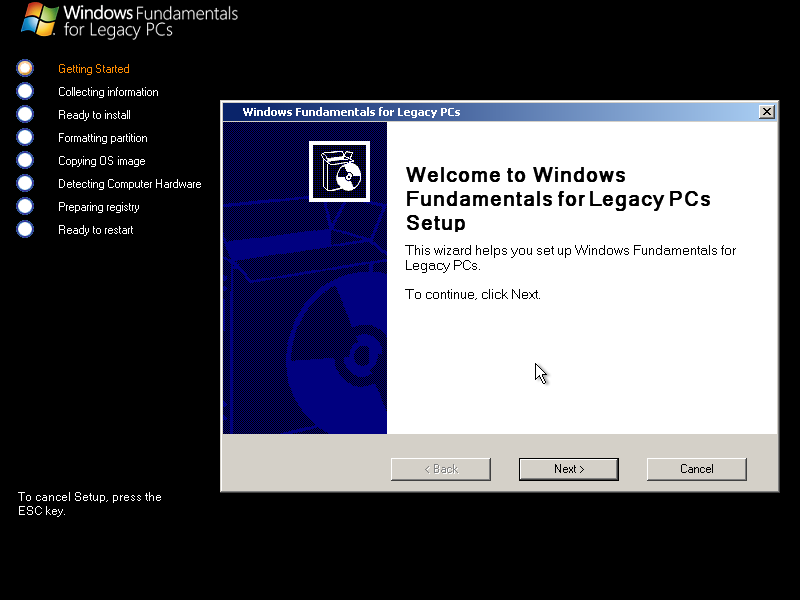
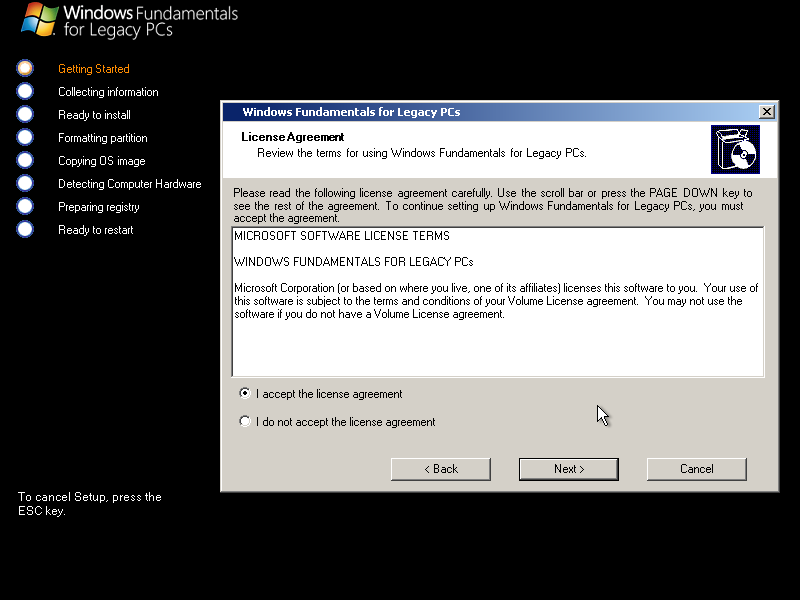
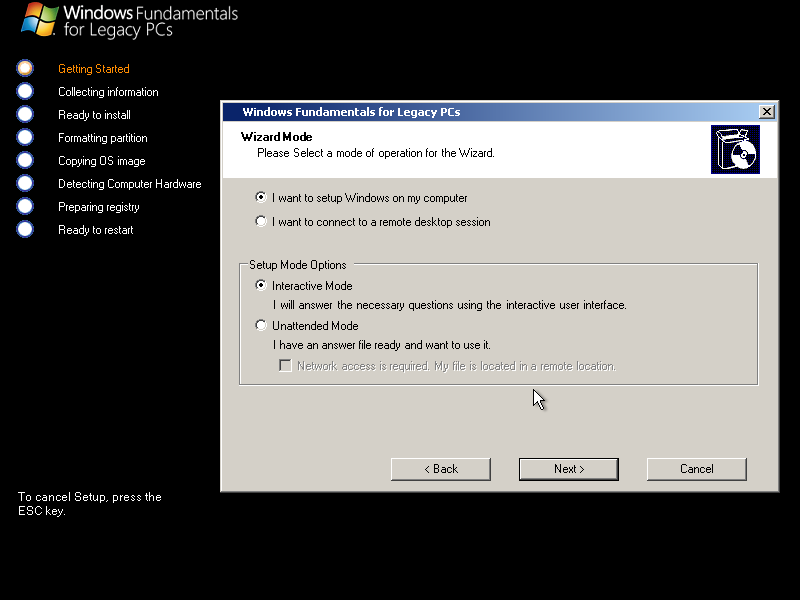
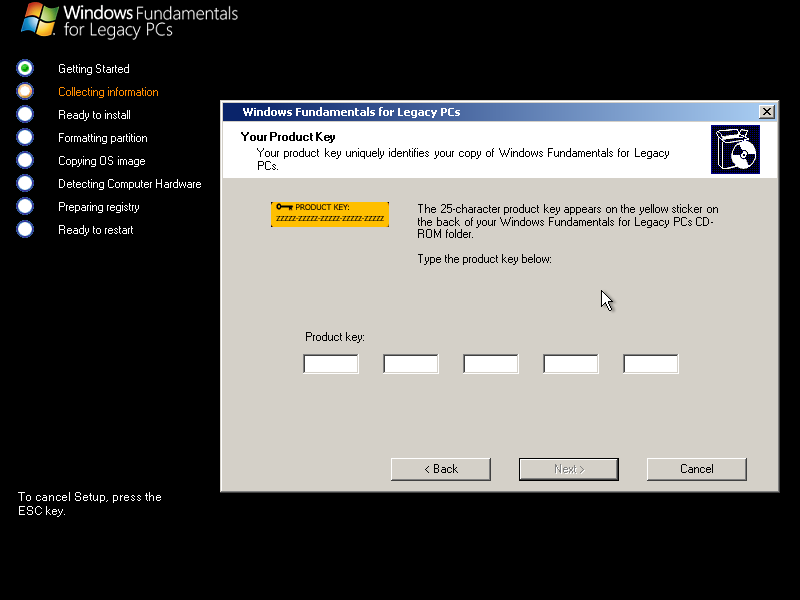
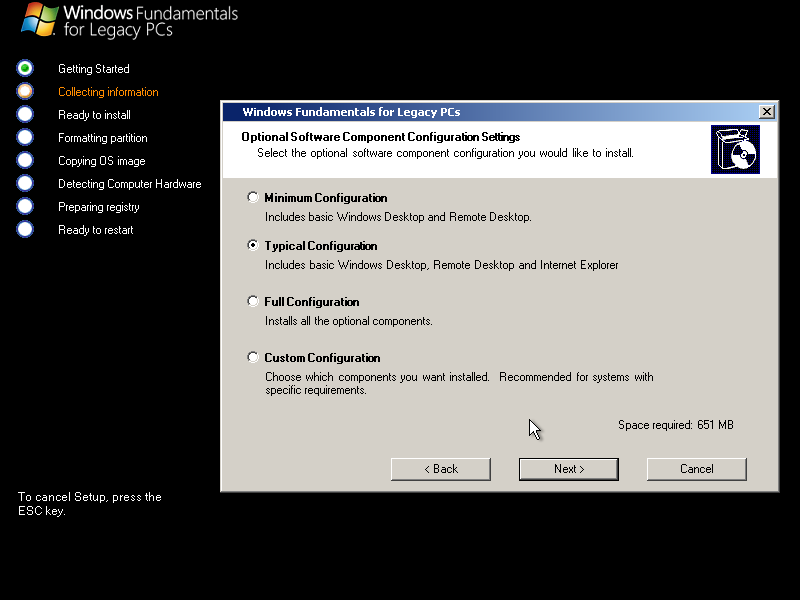
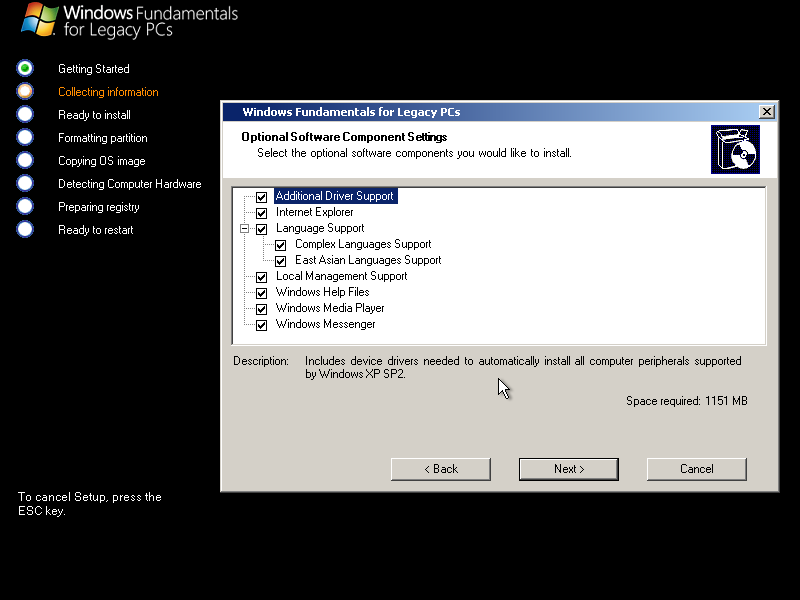
This is a volume license edition of an old version of Windows, so our product key is a volume license key, of course and, thankfully, it doesn't actually need to connect to a server to activate. Isn't that just convenient?! After we choose regional settings, we get to choose how much we want. On the small end, you'd just use it as a remote desktop thin client. If you want to use the computer for something, you're actually going to connect to a server to do that thing. But, you can certainly add stuff. In addition to Internet Explorer (which is surprisingly optional here), you can get support for various languages, local management tools, drivers, and even Windows Media Player, DirectX, and Windows Messenger. Why a corporation would need Windows Messenger is beyond me, but hey. (Did any corporations use it for internal communications?)
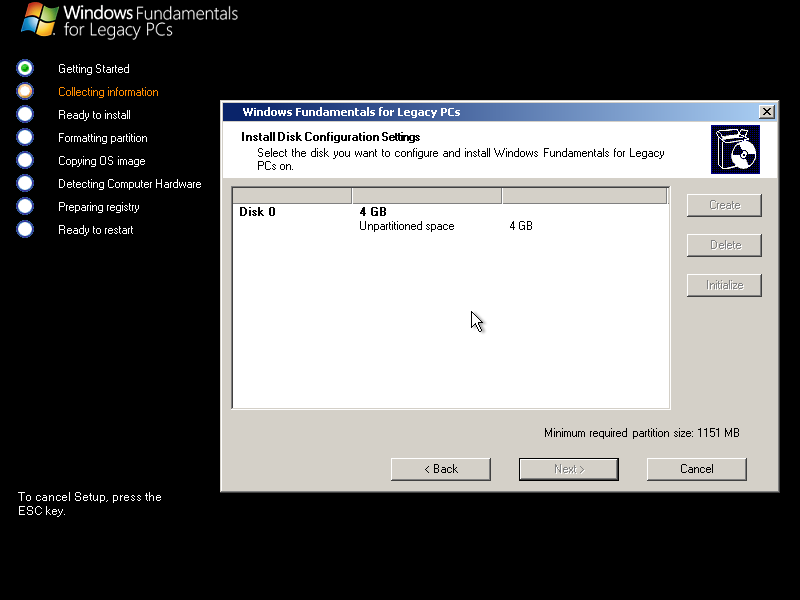
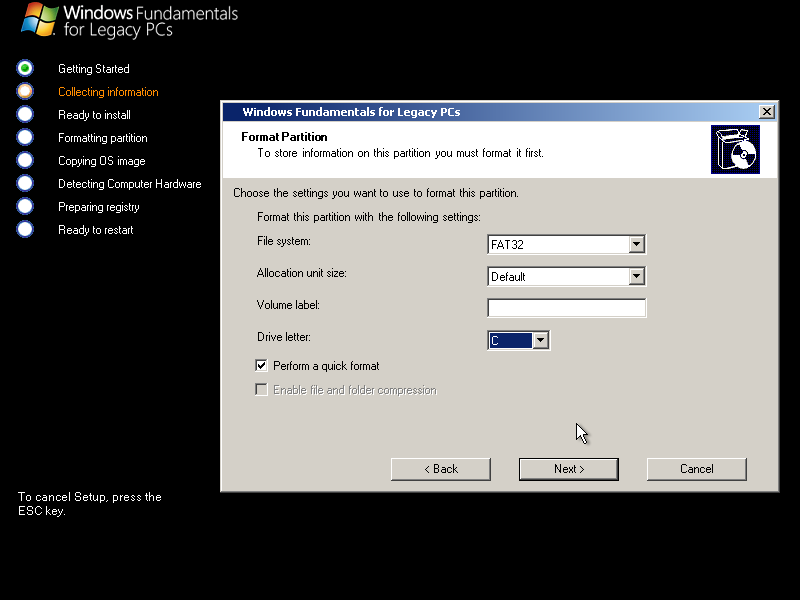
Since there's no text-mode stuff, partitioning and formatting is done with a graphical interface. Pretty cool that you can choose the volume label and drive letter while you're here.
Per usual for Windows XP installs, we need to tell it our name and (optionally) organization, then we give the computer a name (I love those randomly generated names) and admin password. Once we set up our network settings and choose our workgroup or domain, it'll confirm all the options then get to installing!
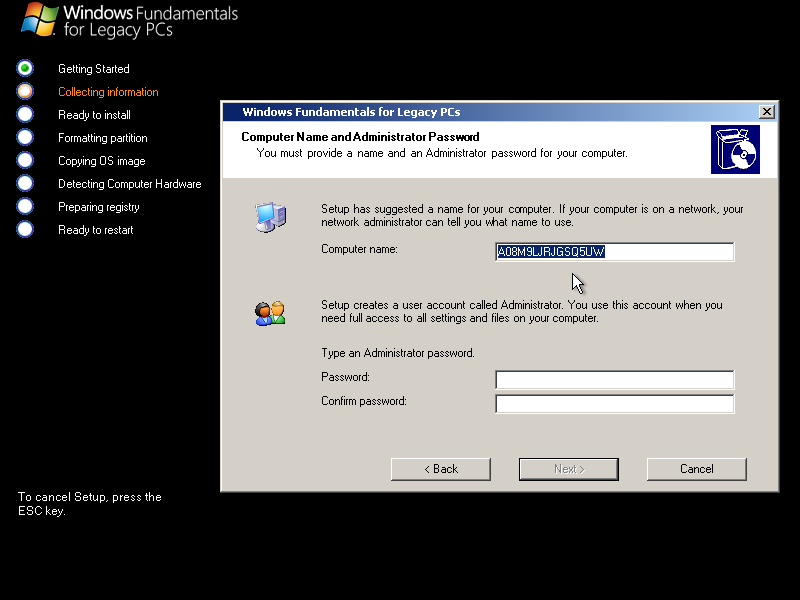
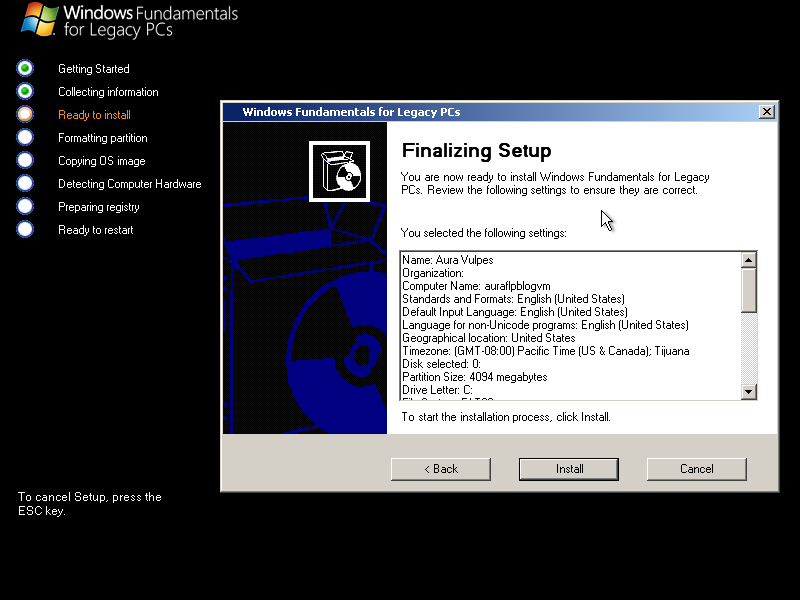
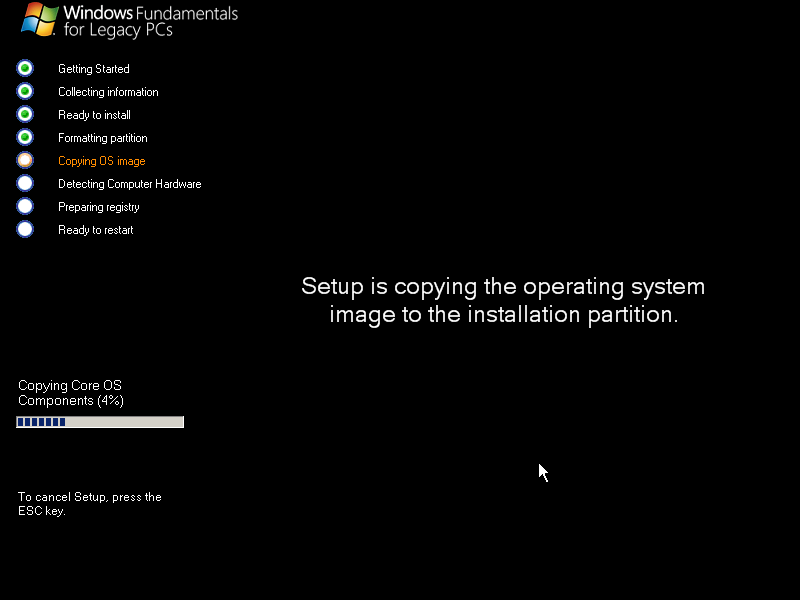
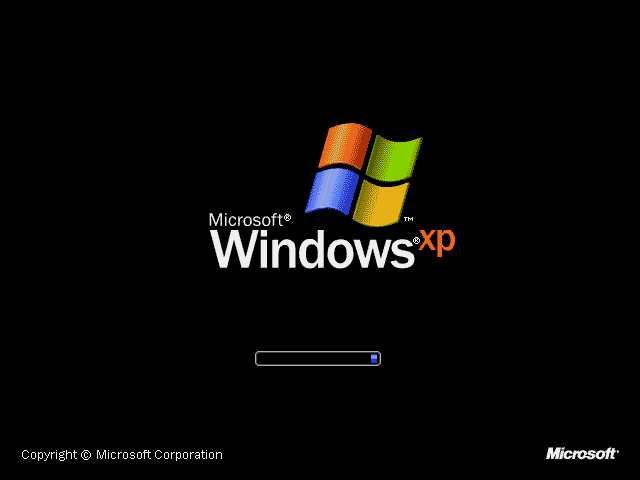
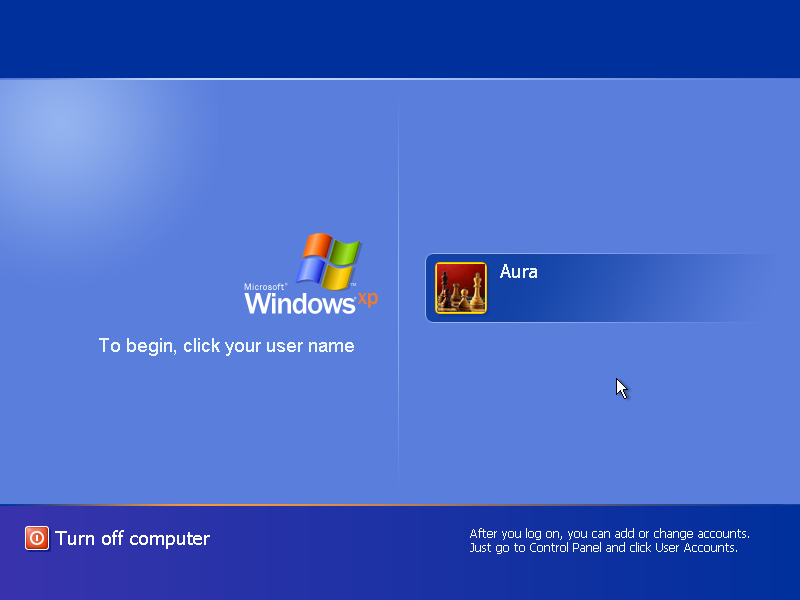
Once we reboot and get a loading screen unchanged from the normal XP one, we go through the first boot agent then, eventually, get to the login screen. At least they decided to change the logo here, I guess.
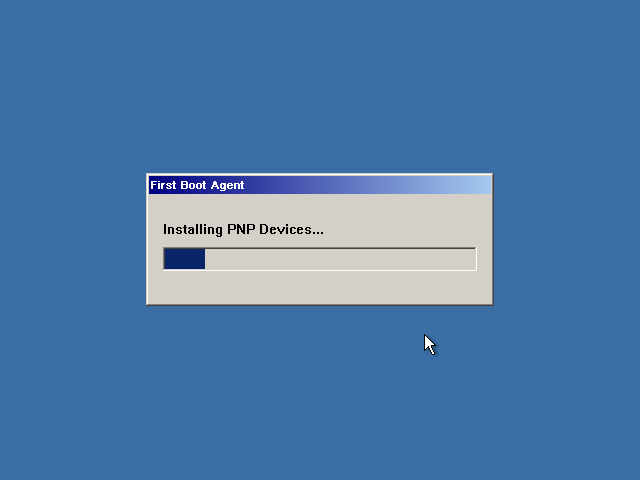
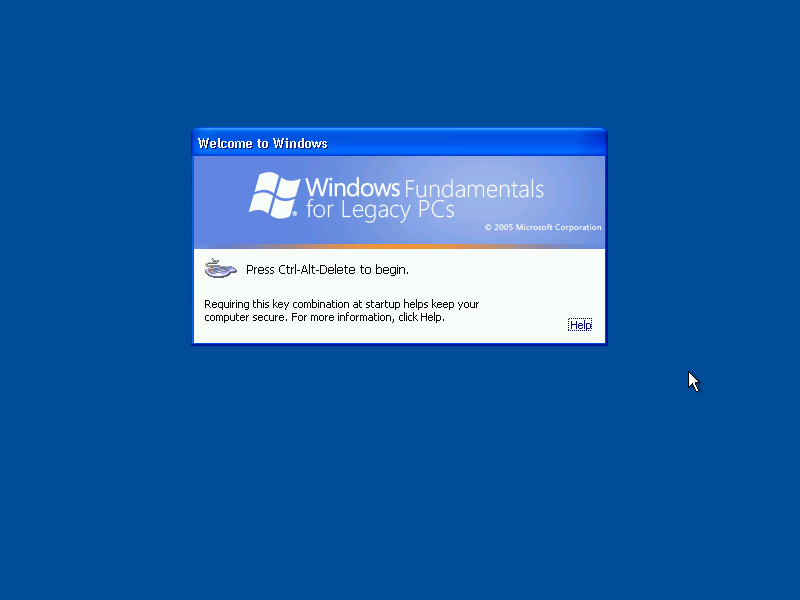
The first time we get to the desktop, the colour depth is set low for some reason. I'm not sure if it's related to running it on Virtualbox. It's been years since I last tried it on real hardware, so I really don't know. But we do get some lovely low colour depth icons, including the Windows 2000 recycle bin. How nice. And if we look in the programs menu, it's remarkably barren compared to Windows XP. When they say "stripped-down", they mean it. And, nope. No bliss to be found here. But at least we can turn up the colour depth.
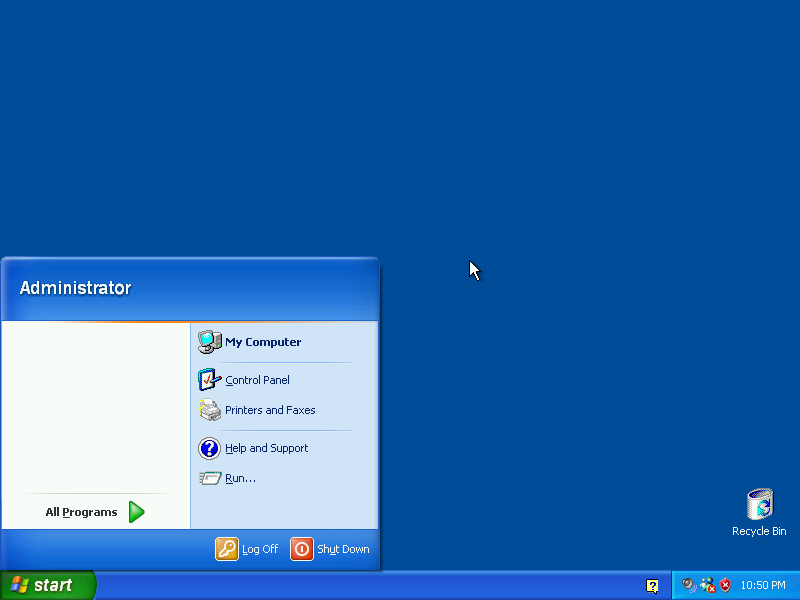
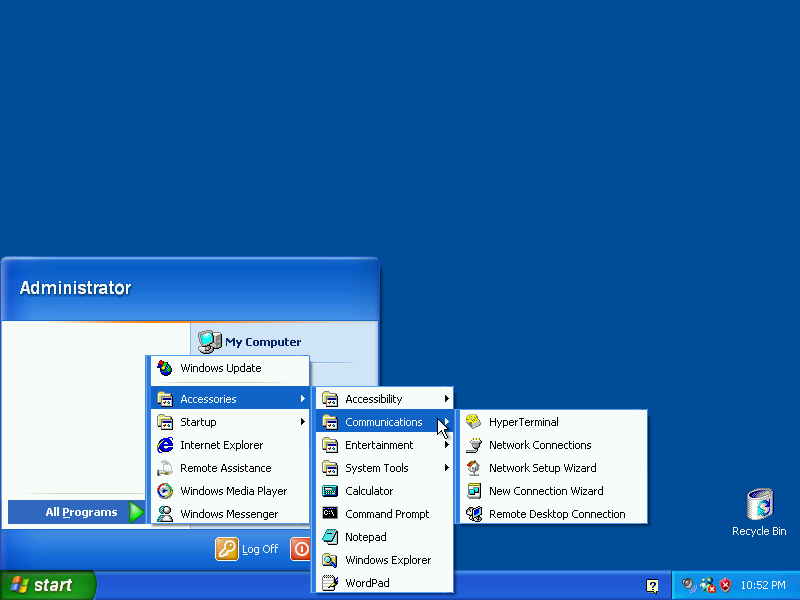
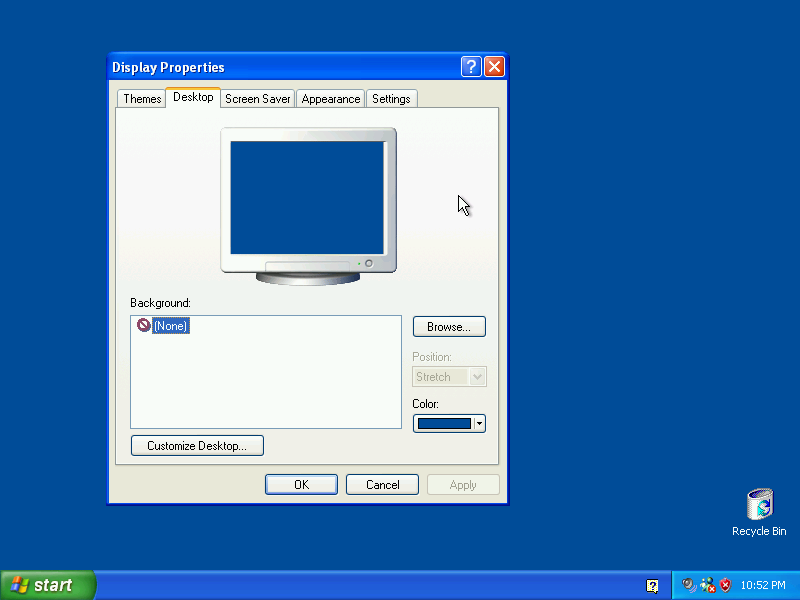
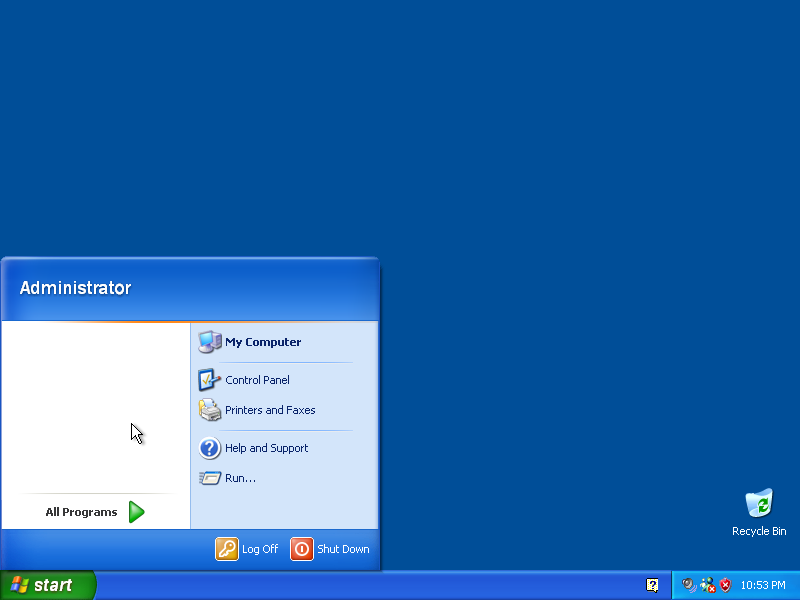
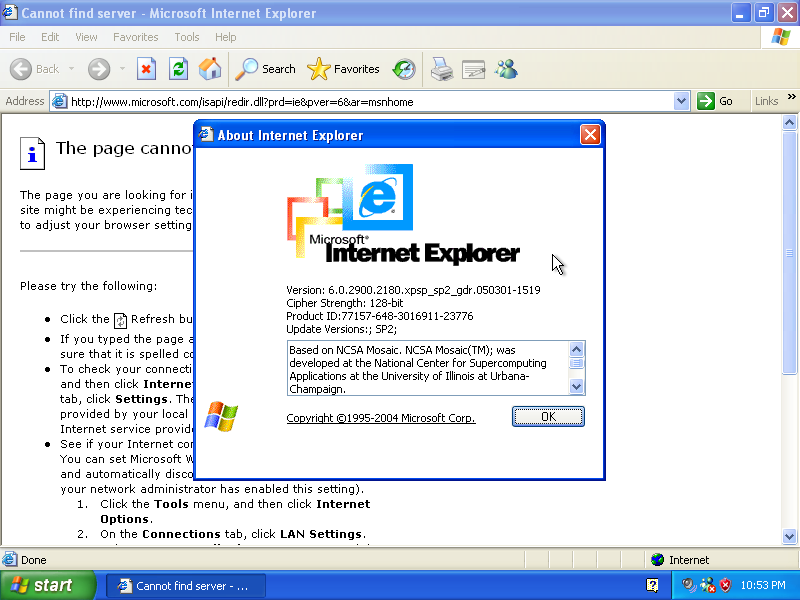
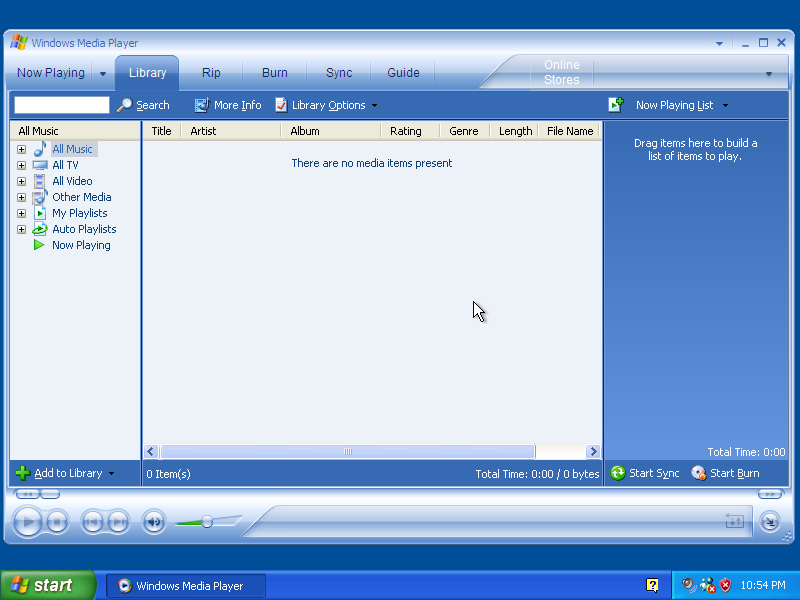
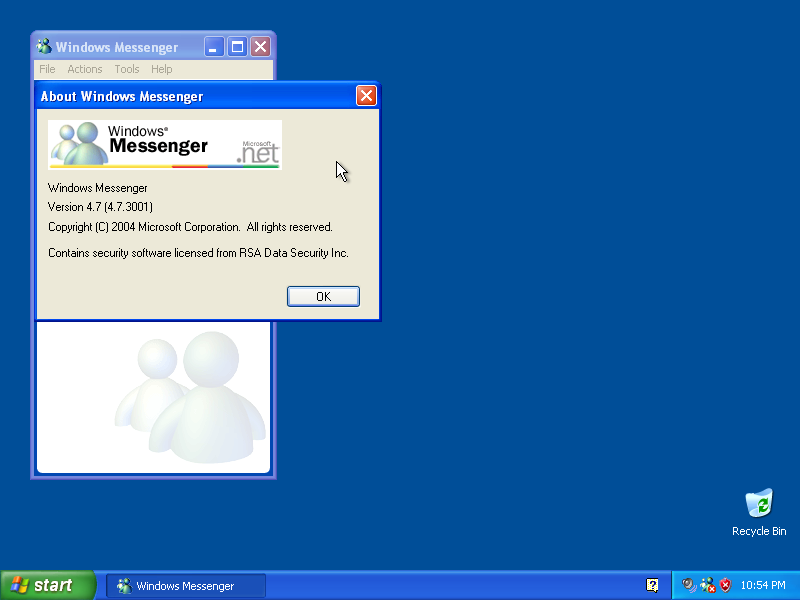
In terms of what we have, it included Internet Explorer 6. Yep, that was the newest version at the time it was released. Microsoft really was kinda pathetic when it came to web browsers at this time. Thank fuck Mozilla came along, am I right? We did, however, get Windows Media Player 10! Personally, I'm more of a WMP 9 fan, but I guess 10 is okay. And Windows Messenger 4.7. Isn't that lovely?
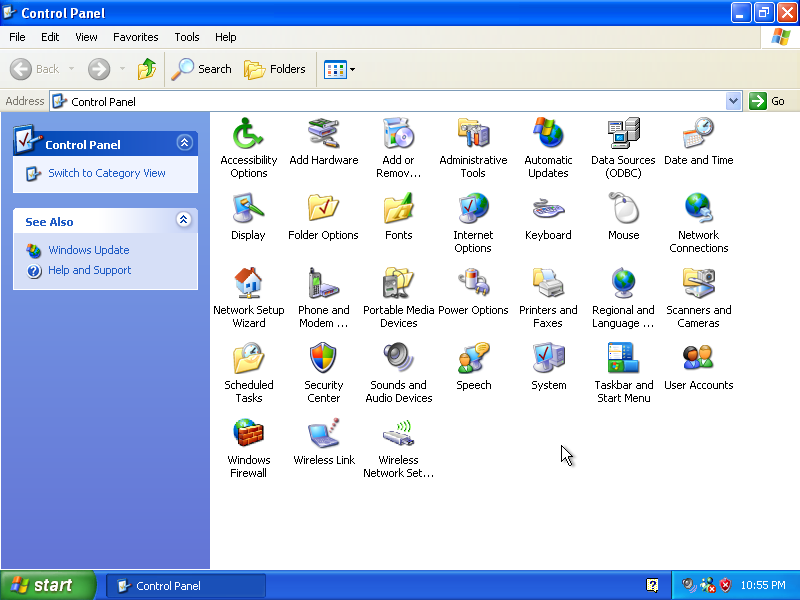
In case you were curious, it includes all the normal control panel options. It also includes the Welcome Screen. I assume it's only there because it wouldn't be trivial to remove it.
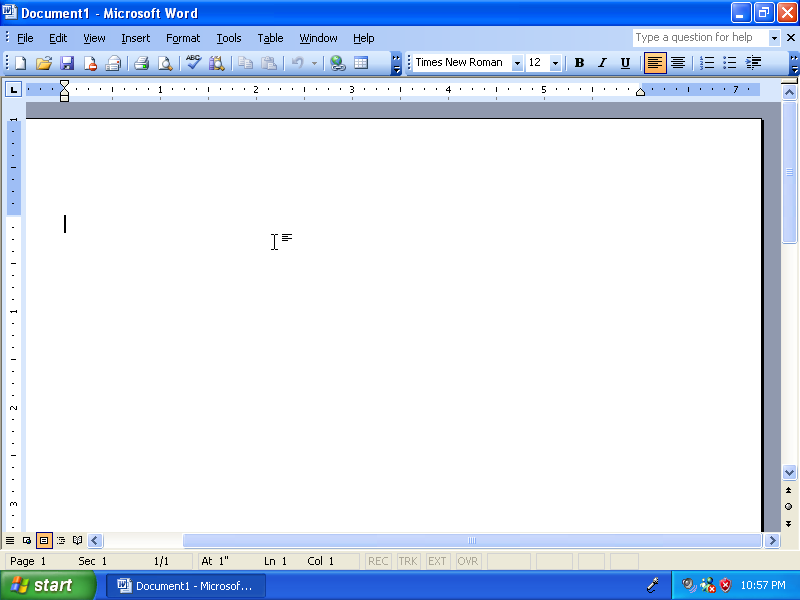
Finally, if you want to see it doing something useful, here's Word 2003! So, if you need to do your standard office-ing, you can certainly do it on here. Perfect for the accountants in your building!
And that's Windows Fundamentals for Legacy PCs. Or should I say... FUN-damentals?! Get it? Get it? Okay, I'll show myself out now.
But, first, some closing remarks. In case you were curious, this wouldn't be Microsoft's last attempts at this kinda thing. Later on, they'd release Windows Thin PC, a similar thing but for Windows 7. It was kinda like an enterprise version of Windows 7 Starter, but less shite. Maybe I'll cover it someday. For now, I'll end off here. Maybe I'll come back and cover some of the others I mentioned at the start. Certainly not in this level of detail, but still. So, yeah. In the meantime, hopefully, you've learned something interesting. Have a nice evening (or whatever time of day it is for you)!
Keywords: Software